
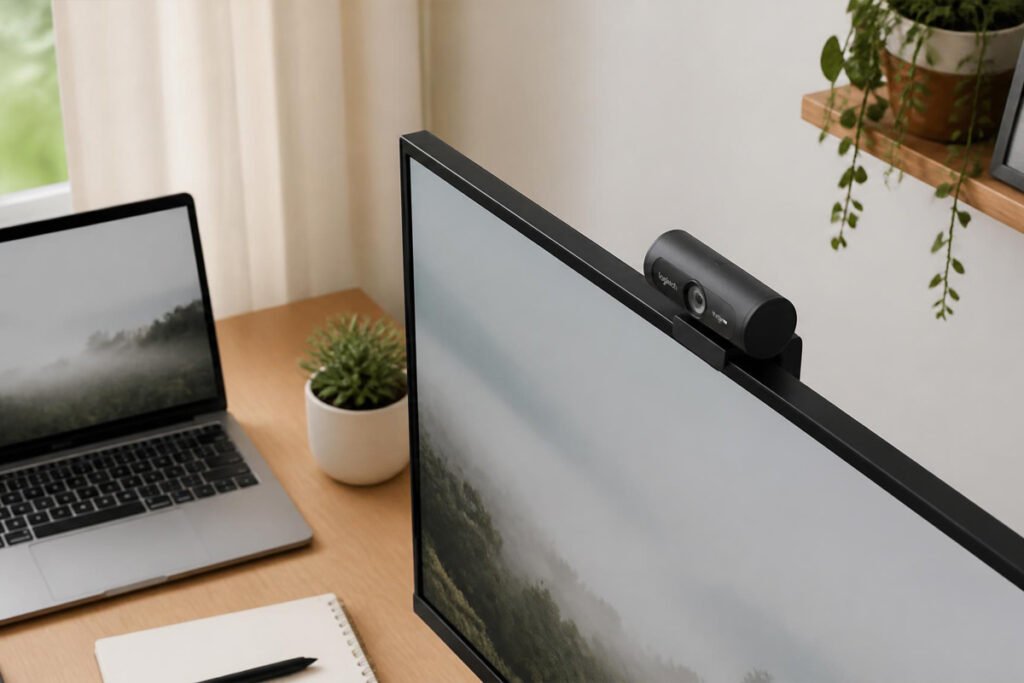
You’ve written a proposal that follows the structure in our guide on how to write a business proposal that wins clients, priced it using the right model from our proposal pricing guide, and sent it through proposal software. Then the client books a video call to walk through it — and your built-in laptop camera makes you look like you’re calling from underwater.
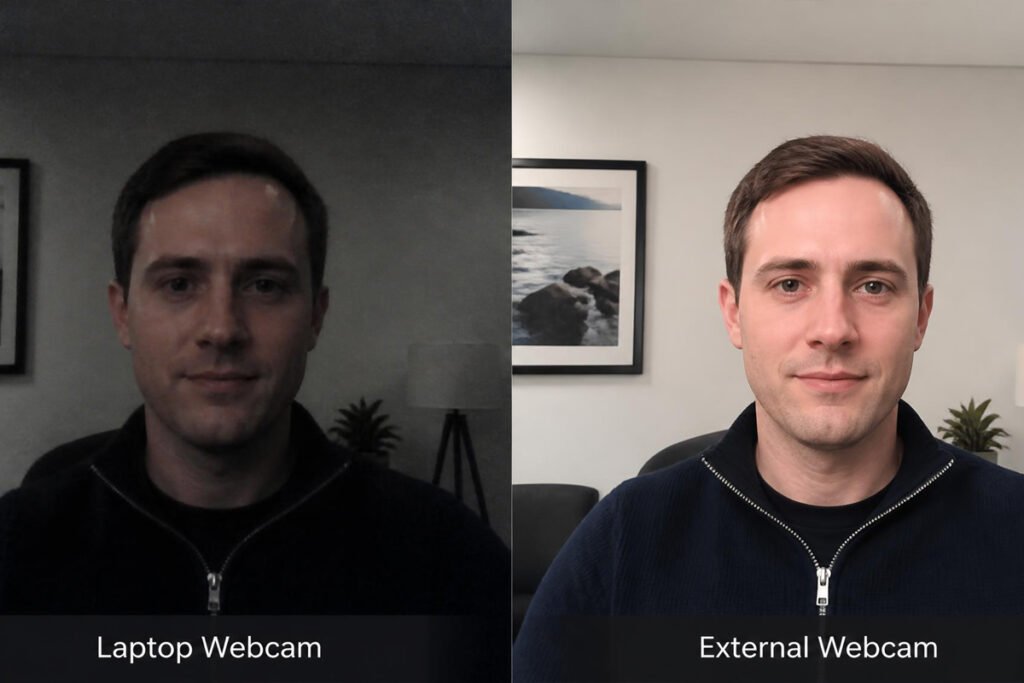
A grainy, dim, wide-angle laptop camera quietly undercuts a strong proposal before you’ve said a word. Buyers form an impression of professionalism within the first few seconds of a video call, and a poor picture reads as low effort even when your actual work is excellent.
This guide compares the five webcams worth buying for client-facing video calls in 2026, based on how well they perform for the two things that actually matter in a business meeting: a clear, well-lit picture and reliable, distraction-free operation.
Quick Answer
The best webcam for virtual client meetings depends on your budget and how often you’re on camera. For most freelancers and consultants, the Logitech Brio 500 is the strongest all-around pick — sharp 1080p video with automatic exposure correction and no configuration needed. If budget matters more, the Logitech C920x delivers reliable, proven image quality at a fraction of the price. If you want the microphone built in to double as your call audio, the Anker PowerConf C200 pairs solid 2K video with strong noise-cancelling mics. Heavier users who want the camera to frame them automatically as they move should look at the Insta360 Link 2 or Obsbot Tiny 2 Lite.
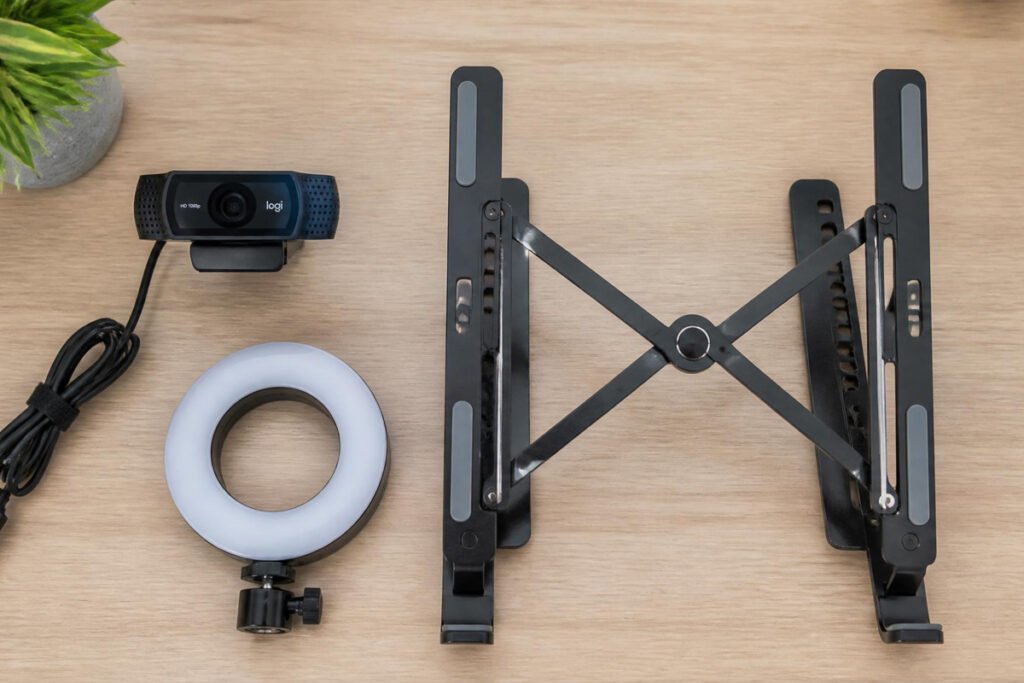
Table of Contents
- Why Your Webcam Affects How Clients Perceive You
- How to Choose the Right Webcam for Client Calls
- Best Webcams Available
- Comparison Table
- Best Webcams for Different Meeting Types
- How to Set Up Your Webcam Correctly
- Common Mistakes
- Expert Tips
- Final Thoughts
- Frequently Asked Questions
Why Your Webcam Affects How Clients Perceive You {#why-it-matters}
A video call is often the first time a prospective client sees you in real time, not just reads your proposal. Most laptop-integrated cameras use small, low-quality sensors positioned at an unflattering upward angle, and they struggle badly in mixed or low indoor lighting — exactly the conditions of a typical home office or workspace.
An external webcam with a larger sensor and proper auto-exposure correction fixes both problems at once: a sharper, better-lit picture and a more natural camera angle when mounted on top of a monitor rather than built into a laptop lid. This matters most in the exact moments where perception counts, like presenting the pricing section covered in our proposal pricing guide or walking a client through a pitch deck screen-share.
How to Choose the Right Webcam for Client Calls {#how-to-choose}
Before comparing specific models, answer three questions:
How many hours a week are you on video calls? If it’s more than a few hours, the auto-framing and low-light correction on a mid-range webcam pays for itself quickly in how consistently professional you look.
Do you need the microphone built in, or do you already use a separate headset? If you’re not already using a dedicated mic, prioritizing a webcam with strong built-in audio, like the Anker PowerConf C200, removes the need for a second device.
Is your desk setup fixed, or do you move around during calls? If you regularly move or gesture while presenting, an auto-tracking webcam like the Obsbot Tiny 2 Lite keeps you centered in frame without manual adjustment.
Best Webcams Available {#best-options}
1. Logitech Brio 500
Overview: The Brio 500 is widely regarded as the strongest all-around webcam for professional video calls in 2026, combining Logitech’s auto-framing technology with automatic exposure correction that <cite index=”62-1″>produces consistently sharp, well-lit video with no configuration required</cite>.
Key Features:
- 1080p video with automatic light correction
- Auto-framing keeps you centered as you move
- Dual noise-reduction microphones built in
- USB-C connection, compatible with all major platforms
Best For: Freelancers and consultants who are on client calls several times a week and want a reliable, no-setup solution.
Pros: ✅ Zero configuration needed ✅ Strong low-light correction ✅ Auto-framing works well in practice
Cons: ❌ 1080p rather than 4K ❌ Pricier than basic 1080p webcams
Our Verdict: For most people reading this guide, the Brio 500 is the single best upgrade from a laptop camera — it directly supports the kind of polished first impression that matters when presenting a business proposal on camera.
2. Logitech C920x HD Pro
Overview: The C920x has been a trusted name in webcams for years, and it <cite index=”61-1″>continues to earn its place among top-rated webcams for its consistent image quality, dependable autofocus, and affordable price</cite>.
Key Features:
- Full HD 1080p at 30fps
- Dual stereo microphones
- Reliable autofocus
- Flexible clip mount fits most monitors and laptops
Best For: Budget-conscious freelancers and small business owners who want a proven, no-frills upgrade over a built-in camera.
Pros: ✅ Excellent value for the price ✅ Long track record of reliability ✅ Works well in average indoor lighting
Cons: ❌ No auto-framing ❌ Less impressive in genuinely dim rooms than pricier options
Our Verdict: If you’re just starting to formalize client calls as part of finding your first customers, the C920x delivers most of the visible quality improvement of pricier webcams at a fraction of the cost.
3. Anker PowerConf C200
Overview: The PowerConf C200 stands out for pairing solid 2K video with genuinely strong call audio, offering <cite index=”60-1″>2K video with AI noise-cancelling stereo microphones rated for pickup up to three metres away</cite> — the strongest built-in audio of any webcam in this roundup.
Key Features:
- 2K resolution video
- AI noise-cancelling stereo microphones
- Strong low-light correction for the price
- Compact, durable clip design
Best For: Anyone who doesn’t already use a separate headset or microphone and wants both video and audio handled by one device.
Pros: ✅ Best built-in audio in this roundup ✅ Good low-light performance ✅ Affordable for the feature set
Cons: ❌ No auto-framing ❌ 2K output is less universally supported than standard 1080p
Our Verdict: For solo consultants who take client calls from a laptop without a separate microphone setup, the C200’s audio quality alone makes it worth prioritizing over a video-only upgrade.
4. Insta360 Link 2
Overview: The Link 2 uses a physical gimbal to track and frame you automatically, offering 4K resolution alongside AI-powered movement tracking that keeps you centered without a fixed camera angle.
Key Features:
- 4K resolution
- Motorized gimbal tracking that follows your movement
- AI-powered subject framing
- Strong low-light performance for its class
Best For: Presenters who move, gesture, or stand while walking a client through a screen-share or whiteboard.
Pros: ✅ Genuinely useful auto-tracking ✅ Sharp 4K image ✅ Good in mixed lighting
Cons: ❌ Pricier than fixed-lens competitors ❌ 4K files are heavier if you record calls
Our Verdict: Worth the premium specifically if your presentation style is active rather than sitting still — a strong pairing with a well-designed pitch deck for client-facing presentations.
5. Obsbot Tiny 2 Lite
Overview: The Tiny 2 Lite is built around the same auto-tracking concept as much pricier conference-room cameras, using a physical gimbal to <cite index=”59-1″>pan and tilt with precision that follows your upper body, hands, and face</cite> throughout a call.
Key Features:
- Motorized pan-and-tilt tracking
- 1080p video with strong autofocus
- Gesture-based controls for framing adjustments
- Compact, desk or monitor-mountable design
Best For: Small business owners who want conference-room-style tracking without the conference-room price.
Pros: ✅ Genuinely accurate auto-tracking ✅ Compact and easy to mount ✅ Good value relative to true PTZ cameras
Cons: ❌ 1080p rather than 4K ❌ Slightly more setup than a fixed webcam
Our Verdict: A strong pick if you regularly present to clients from a standing desk or move between a screen and a whiteboard during calls.
Comparison Table {#comparison}
| Product | Best For | Resolution | Auto-Tracking | Built-In Mic |
|---|---|---|---|---|
| Logitech Brio 500 | Best overall, no setup | 1080p | Yes | Yes |
| Logitech C920x | Best budget pick | 1080p | No | Yes |
| Anker PowerConf C200 | Best audio | 2K | No | Yes (strong) |
| Insta360 Link 2 | Best for active presenters | 4K | Yes (gimbal) | Yes |
| Obsbot Tiny 2 Lite | Best value tracking | 1080p | Yes (gimbal) | Yes |
Best Webcams for Different Meeting Types {#by-type}
Freelancers and Solo Consultants
If you’re early in freelancing and taking client calls a few times a week, the Logitech C920x delivers the most visible improvement for the lowest cost. Save the upgrade budget for later once video calls become a daily part of your process.
Small Agencies Presenting to Multiple Clients Weekly
Once client calls happen daily, the Brio 500’s zero-configuration reliability and auto-framing save real time across a busy week, and support the consistent, polished image that matters as you build a personal brand clients recognize call after call.
Standing Presentations and Active Screen-Sharing
If you present standing up, walk between a screen and a whiteboard, or move while explaining a proposal, the Insta360 Link 2 or Obsbot Tiny 2 Lite’s tracking keeps you framed correctly without needing to stay perfectly still.
How to Set Up Your Webcam Correctly {#how-to}
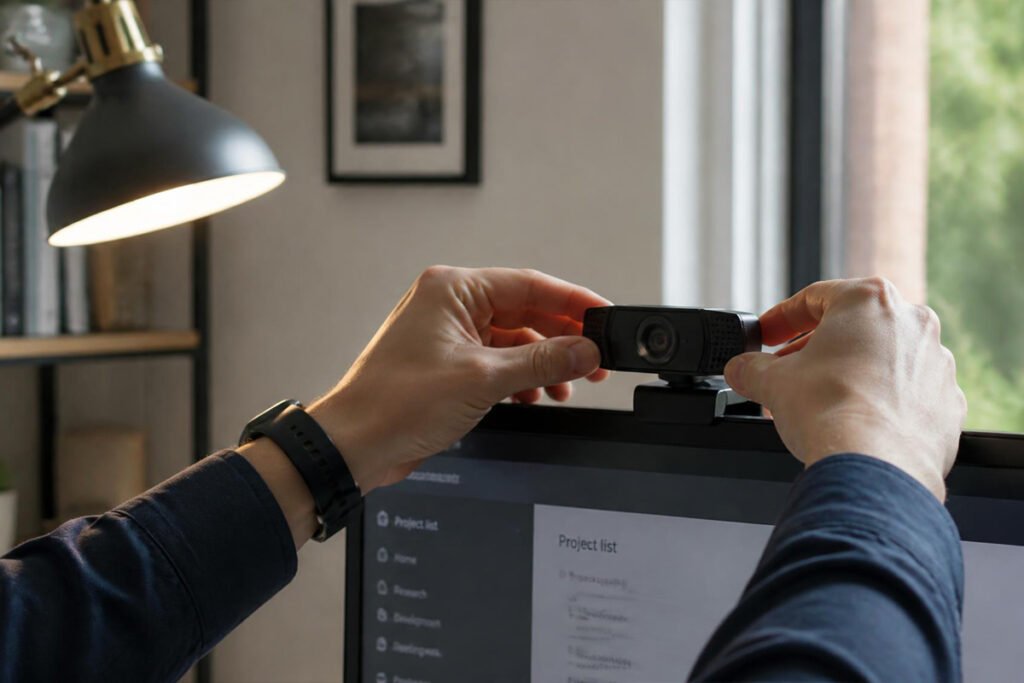
Step 1: Mount at Eye Level
Position the webcam at or slightly above eye level, ideally on top of an external monitor rather than a laptop, so the angle looks natural instead of shooting up at you.
Step 2: Add a Light Source in Front of You
Face a window or a simple desk lamp rather than sitting with a light source behind you — backlighting is the single biggest cause of a washed-out, hard-to-see picture on client calls.
Step 3: Set the Correct Resolution for Your Call Platform
Most video conferencing platforms cap out around 1080p, so a 4K webcam set to its native resolution can actually look worse due to compression — check your webcam’s software settings and match it to what your call platform actually supports.
Step 4: Test Audio Separately From Video
Even a great picture is undermined by muffled or echoey audio — run a quick test call before an important client meeting to confirm both video and audio quality together.
Step 5: Frame Yourself With Some Headroom
Leave a small amount of space above your head in frame rather than centering your face too tightly — a slightly wider frame reads as more natural and less like a mugshot.
Common Mistakes {#mistakes}
Sitting with a window or light directly behind you. This is the most common cause of a dark, silhouetted picture on client calls, and it’s an easy fix by simply facing your light source instead of having it at your back.
Using 4K settings on a low-bandwidth connection. A webcam set higher than your connection can reliably support often looks choppier than a lower, more stable resolution — worth testing before an important call tied to a proposal walkthrough.
Ignoring audio quality while focused only on video. A slightly softer picture with clear audio consistently reads as more professional than a sharp picture with muffled or distant-sounding audio.
Expert Tips {#tips}
Match your webcam upgrade to your actual call volume. If you’re taking one or two calls a week, a $60–70 webcam like the C920x delivers nearly all the visible benefit of a $150+ model — save the bigger investment for once call volume genuinely increases.
Keep a consistent setup across client calls. Using the same webcam, lighting, and background every time builds a subtle sense of professionalism and consistency that clients notice, even if they can’t articulate why.
Don’t skip a basic ring light even with a good webcam. Even the best webcam sensor can’t fully compensate for genuinely poor room lighting — a small, inexpensive ring light often improves picture quality more than upgrading the camera itself.
Final Thoughts / Final Verdict {#final-thoughts}
Best overall: Logitech Brio 500, for reliable, no-configuration video quality. Best budget: Logitech C920x, for proven performance at a low price. Best for standing presentations: Insta360 Link 2 or Obsbot Tiny 2 Lite, for auto-tracking flexibility.
A webcam upgrade is a small, one-time cost that pays off every time you’re on camera with a client — and it works best alongside the fundamentals: a strong business proposal, clear pricing, and a consistent personal brand that makes clients remember you for the right reasons.
Frequently Asked Questions {#faq}
Is a webcam upgrade really worth it for a small business? Yes, if you regularly present to clients on video — a sharp, well-lit picture is one of the lowest-cost improvements you can make to how professional you come across, right alongside a strong proposal.
Do I need a 4K webcam for Zoom or Google Meet? No. Most video call platforms cap resolution around 1080p, so a good 1080p webcam like the Brio 500 or C920x looks just as sharp on a call as a 4K model.
Can I use my phone as a webcam instead? Yes, several apps let you use a smartphone as a webcam, and modern phone cameras often outperform basic laptop webcams — though a dedicated webcam is generally easier to mount and use consistently for daily calls.
How much should I spend on a webcam for client calls? For most freelancers and small business owners, $60–90 covers a genuinely good upgrade like the C920x or Brio 500. Auto-tracking models with gimbals run higher, generally $150–250.
Does lighting matter more than the webcam itself? Often, yes. A basic webcam in good lighting can look better than an expensive webcam in poor lighting — prioritize facing a light source before investing heavily in camera hardware.
Should I use my webcam’s built-in microphone or a separate headset? If you already own a decent headset, keep using it — audio quality matters more than video quality on most calls. If you don’t, a webcam with strong built-in mics, like the Anker PowerConf C200, is a reasonable single-device solution.
Will a better webcam actually help me win more client proposals? Indirectly, yes — a clear, professional video presence supports the impression created by your written proposal and pricing, even though the webcam itself isn’t what closes the deal.
How do I know if my current webcam is holding me back? Record a short test call and watch it back — if the picture looks noticeably dimmer, softer, or more washed out than how you look in person, it’s a sign an upgrade would help.
Do auto-tracking webcams work well for seated calls too? Yes, most auto-tracking webcams work fine for seated use and simply stay locked on you without needing to actively track large movements, so there’s no downside to choosing one even if you mostly sit still.
Is it worth using the same webcam for recorded content, like a pitch video? Generally yes — a webcam good enough for live client calls is usually good enough for a simple recorded pitch deck walkthrough video, without needing separate equipment.
Author: Morne Winston Last Updated: August 2026