
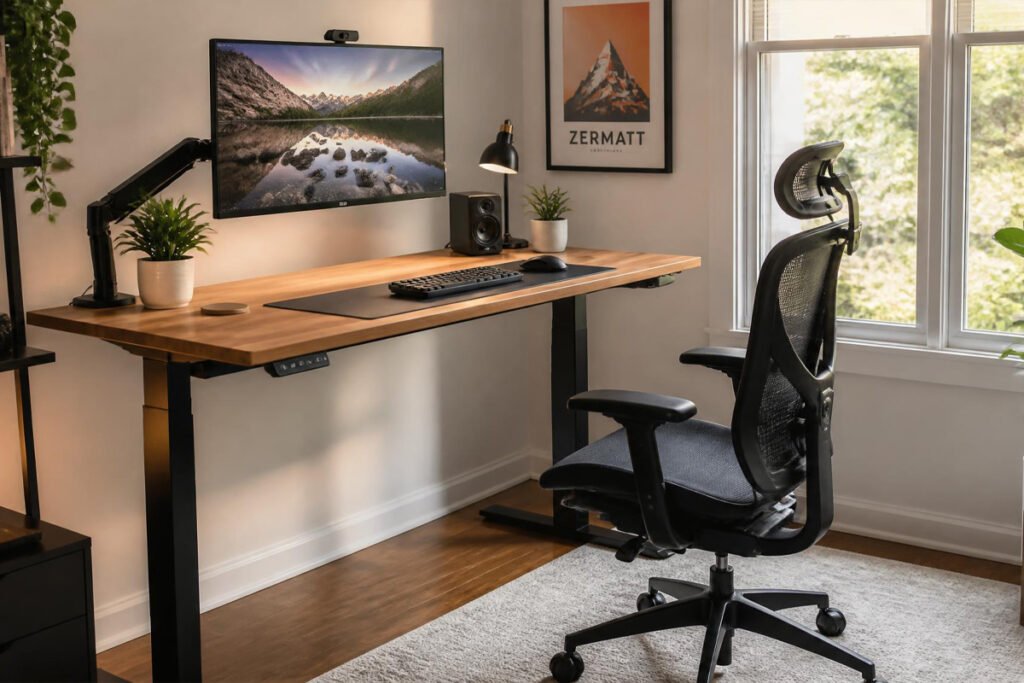
By 3 p.m., your lower back aches, your neck is stiff from looking down at a laptop screen all day, and you’ve lost twenty minutes untangling a charging cable from your mouse cord — again. None of this shows up on your to-do list, but it quietly eats into every focused hour you have as a founder.
Most entrepreneurs put real thought into their business tools and almost none into the physical setup they sit in for eight-plus hours a day. That’s backwards. If you’re starting a small business from home, your desk is effectively your production line — and a poorly set up one costs you focus, energy, and eventually your body, in ways that are hard to notice day to day but add up fast over a year of running your freelance business.
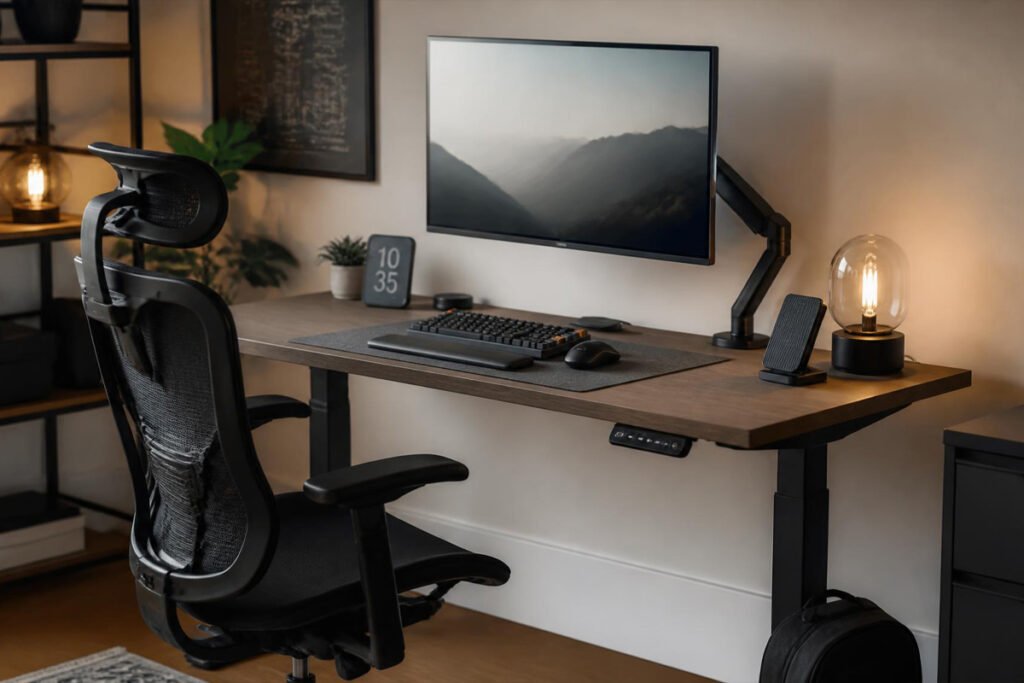
The good news is that fixing this doesn’t require a full office renovation. A handful of well-chosen accessories — the right desk, chair, monitor positioning, cable setup, and lighting — solve the vast majority of the discomfort and distraction that builds up over a workday.
In this guide, we break down the five home office accessories worth investing in first, what each one actually solves, and how to prioritize your budget if you can’t buy everything at once.
Quick Answer
The best home office setup depends on which problem is hurting you most right now. If your back or hips ache by mid-afternoon, prioritize your chair first — it has the single biggest impact on comfort of any item on this list. If you’re hunched forward staring down at a laptop, a standing desk and a monitor arm together fix posture at the root instead of masking it. If your desk feels chaotic and distracting, a proper cable management system clears the visual clutter that quietly drains focus. And if video calls are a regular part of your workday, task lighting makes you look — and feel — noticeably more put-together on camera. The right principle: fix the component causing you the most daily pain first, then build outward from there.
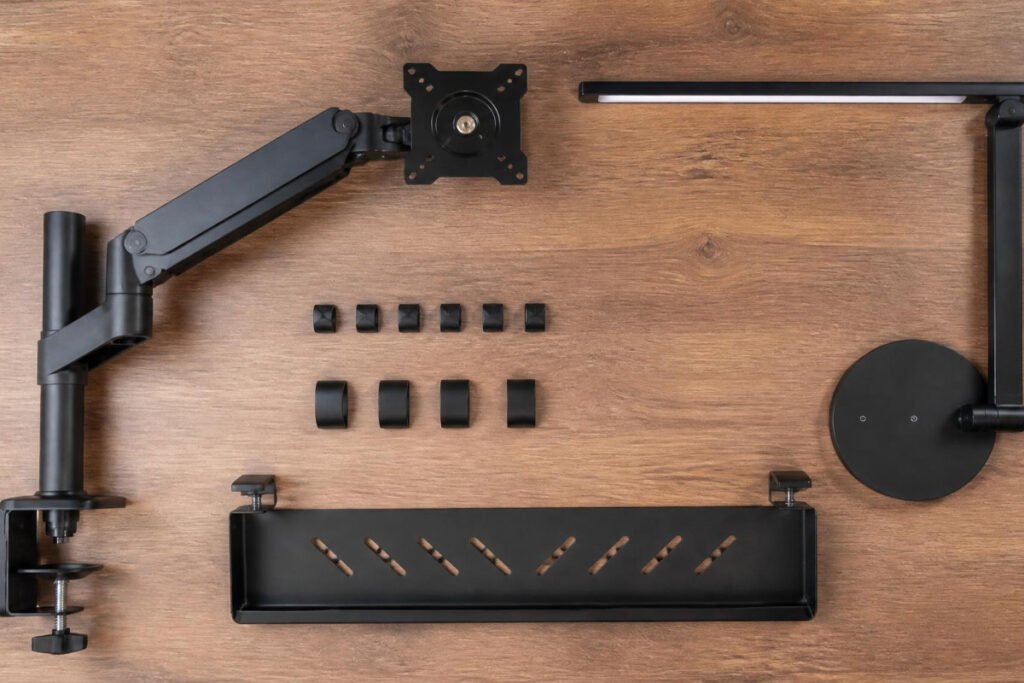
Table of Contents
- What Makes a Home Office Setup Actually Work?
- How to Choose the Right Accessories for Your Budget
- Best Home Office Desk Accessories Available
- Comparison Table
- Best Setup for Different Types of Entrepreneurs
- How to Build Your Setup Step by Step
- Common Mistakes
- Expert Tips
- Final Thoughts
- Frequently Asked Questions
What Makes a Home Office Setup Actually Work? {#what-is}
A functional home office setup isn’t about how it looks — it’s about how your body and focus hold up after hour six of a workday. The best home office desk accessories solve three problems at once: physical strain, visual clutter, and the small daily friction points that break your concentration without you noticing.
The most impactful categories, in order of real-world impact, are:
- Seating, since your chair supports your body for more hours per day than almost anything else you own
- Screen positioning, which determines whether your neck and shoulders stay neutral or slowly round forward over months
- Desk height and movement, which affects circulation, energy levels, and afternoon fatigue
- Cable and desk organization, which reduces the low-grade visual noise that pulls at your attention all day
- Lighting, which affects both eye strain during work and how you present yourself on video calls
According to OSHA’s ergonomics guidance for computer workstations, proper posture and equipment positioning are directly linked to reducing musculoskeletal strain from prolonged desk work — which matters just as much for a solo founder as it does in a traditional office.
How to Choose the Right Accessories for Your Budget {#how-to-choose}
Before buying anything, ask yourself three questions:
Where does your body hurt first each day? Lower back pain points to your chair. Neck and shoulder tension points to your monitor height. Wrist discomfort points to your keyboard and mouse positioning. Fix the specific pain point first instead of buying the most popular item on a list.
How many hours are you actually at this desk? If you’re at your desk two hours a day between client calls and running errands for your business, a premium standing desk is a lower priority than if you’re seated eight-plus hours running an online business full time.
Are you buying once, or upgrading over time? A reasonable rule of thumb from ergonomics researchers: allocate roughly 40% of your budget to your chair, 35% to your desk, 15% to your monitor setup, and the remaining 10% to smaller accessories — since the chair and desk have the largest measurable effect on comfort.
Best Home Office Desk Accessories Available {#best-options}
1. Standing Desk (Electric, Dual-Motor)
Overview: An electric standing desk lets you alternate between sitting and standing throughout the day, which is one of the most well-supported ways to reduce the fatigue and stiffness that come from staying in one position for hours. Look for a dual-motor model with a high weight capacity, since single-motor desks can struggle with multi-monitor setups and desktop towers.
Key Features:
- Programmable height presets for quick sit-to-stand switching
- Dual-motor lift for stability under heavier monitor and PC setups
- Collision-detection sensors that stop the desk if it hits an obstacle
- Weight capacity high enough to support monitor arms, a desktop tower, and accessories without wobble
Best For: Founders who sit for six or more hours a day and want to build movement into their workday without leaving the desk.
Pros: ✅ Directly reduces the stiffness and fatigue of sitting all day ✅ Programmable presets make switching positions effortless ✅ Doubles as the structural foundation for a monitor arm and cable management
Cons: ❌ The largest single expense on this list ❌ Needs floor space to accommodate the sit/stand range of motion
Our Verdict: If your business runs primarily from a laptop, a standing desk is the single highest-leverage upgrade for anyone starting a business from home and spending most of the day at one screen.
2. Ergonomic Office Chair
Overview: Ergonomics research consistently points to the chair as the single most impactful piece of equipment in a home office setup, ahead of even the desk itself. A good ergonomic chair supports the natural curve of your lower back and adjusts to your specific body rather than forcing you to adapt to it.
Key Features:
- Adjustable lumbar support that moves with your lower back
- Synchro-tilt mechanism so the seat and backrest move together as you recline
- Adjustable armrests, seat depth, and height to match your specific proportions
- Breathable material to stay comfortable through long work sessions
Best For: Anyone spending more than four hours a day seated, regardless of business type.
Pros: ✅ The highest-impact single purchase for daily comfort ✅ Reduces lower back pain more reliably than any other accessory on this list ✅ A one-time investment that typically lasts years with proper care
Cons: ❌ Genuinely good ergonomic chairs are not cheap ❌ Takes some trial and adjustment to dial in the fit correctly
Our Verdict: If you can only afford one accessory on this list right now, ergonomics research is clear that it should be this one — a principle worth remembering whether you’re starting a freelancing business solo or setting up a small team office.
3. Monitor Arm
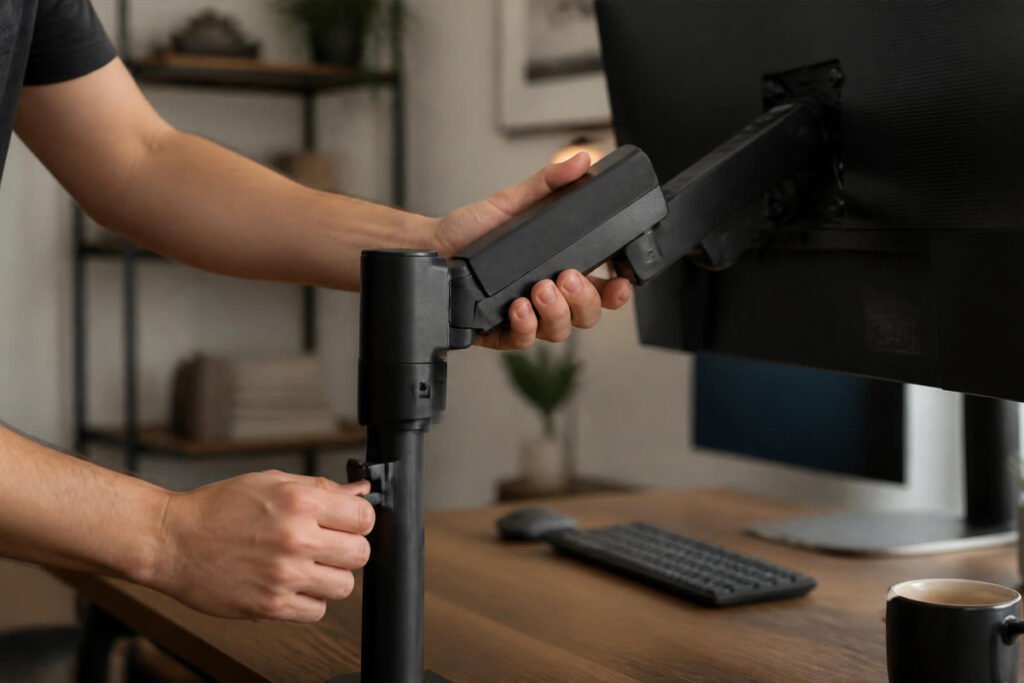
Overview: A monitor arm lifts your screen to eye level and lets you adjust distance and angle freely, which is the single biggest fix for the forward head and neck posture that builds up from looking down at a laptop or low-mounted monitor all day. Most arms clamp directly to the desk and free up the desk surface underneath.
Key Features:
- Full height, tilt, and swivel adjustment to bring the screen to true eye level
- Gas-spring or articulating arm mechanism for smooth one-handed repositioning
- Weight capacity rated for your specific monitor size (check this before buying — larger ultrawide monitors need a higher-rated arm)
- Frees up desk surface space previously taken by a monitor stand
Best For: Anyone using an external monitor, or a laptop paired with a stand, who notices neck or shoulder tension by the afternoon.
Pros: ✅ One of the most affordable items on this list relative to its impact ✅ Fast to install and adjust once mounted ✅ Frees up meaningful desk space
Cons: ❌ Budget models can feel less stable with heavier ultrawide monitors ❌ Requires desk clamp or grommet mounting, which isn’t compatible with every desk edge
Our Verdict: Pair this with a laptop stand if you work primarily from a laptop — the combination solves most of the “hunched over a screen” posture problem that builds up while managing client proposals and calls from a home desk.
4. Cable Management Tray & Organization Kit
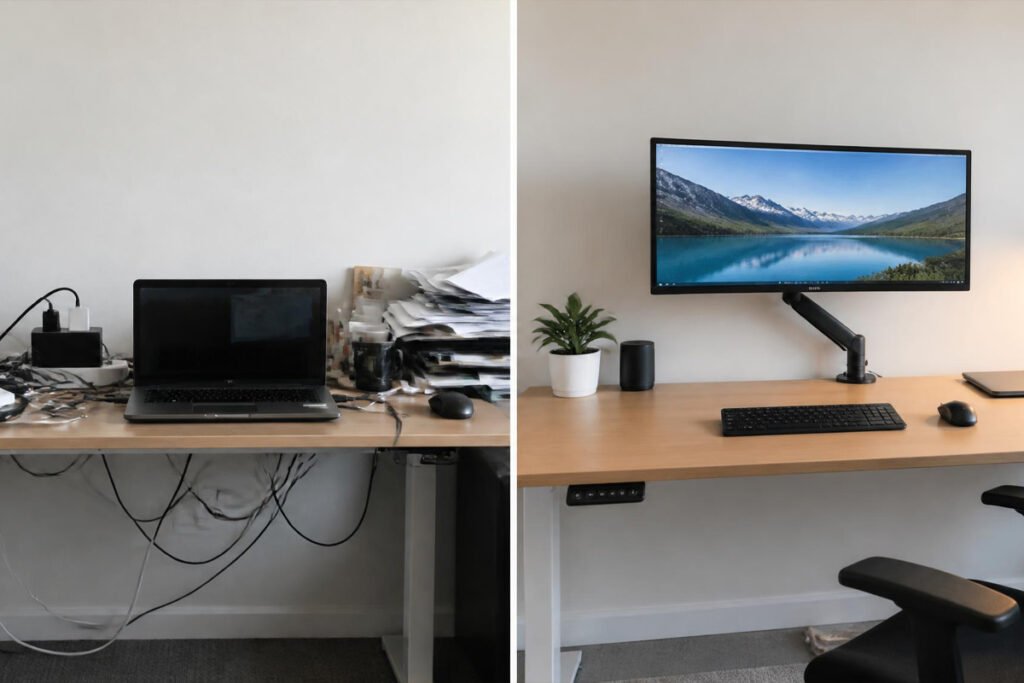
Overview: A cable management system routes and hides the tangle of charging cables, monitor cords, and power strips that accumulate under any desk over time. Beyond the visual clutter, a genuinely messy cable setup makes it harder to move your desk, plug in new devices, or find the right cord quickly during a call.
Key Features:
- Under-desk tray that holds power strips and cable slack out of sight
- Adhesive or clip-on cable clips to route individual cords along the desk frame
- Sleeves or channels to bundle multiple cables into one clean run
- Tool-free installation on most modern desk frames
Best For: Anyone whose desk has visibly accumulated more cables, chargers, and adapters than they’d like to admit.
Pros: ✅ One of the cheapest items on this list by a wide margin ✅ Immediate visual and functional improvement ✅ Makes future desk reconfiguration much easier
Cons: ❌ Needs to be redone if you frequently add or swap equipment ❌ Some kits are desk-frame specific and won’t fit every setup
Our Verdict: This is the fastest, cheapest upgrade on this entire list — a genuinely good starting point if you’re bootstrapping your setup on a tight budget before investing in bigger items.
5. LED Task Lighting
Overview: Good desk lighting solves two separate problems: eye strain from working in dim or harsh overhead light, and how you look on video calls, which matters more than most founders realize when client trust is built over Zoom before it’s built in person. Adjustable LED task lights let you control brightness and color temperature independently of your room’s main lighting.
Key Features:
- Adjustable brightness and color temperature (warm to daylight)
- Clamp or weighted-base mounting that doesn’t take up desk space
- Even, glare-free light coverage across your keyboard and immediate work area
- Some models include a front-facing light angle useful for video calls
Best For: Anyone doing regular video calls, or working in a room with inconsistent natural light.
Pros: ✅ Noticeably improves how you present on client and investor calls ✅ Reduces eye strain during long screen sessions ✅ Compact and easy to reposition as needed
Cons: ❌ Cheaper models can have inconsistent color temperature ❌ Adds one more cable to manage unless paired with the cable tray above
Our Verdict: A small investment that pays off disproportionately if your business involves client-facing calls — worth pairing with the cable management kit above so it doesn’t just add to the clutter it’s meant to help you avoid.
Comparison Table {#comparison-table}
| Accessory | Best For | Relative Cost | Setup Difficulty | Impact on Daily Comfort |
|---|---|---|---|---|
| Standing Desk | Reducing all-day sitting fatigue | High | Moderate (assembly required) | High |
| Ergonomic Chair | Lower back and posture support | High | Low (mostly pre-assembled) | Highest |
| Monitor Arm | Neck and shoulder strain from screen position | Low–Moderate | Low | High |
| Cable Management Kit | Desk clutter and visual distraction | Very Low | Very Low | Moderate |
| LED Task Lighting | Eye strain and video call presentation | Low | Very Low | Moderate |
Prices vary widely by brand and features — compare current listings before buying to match your specific budget tier.
Best Setup for Different Types of Entrepreneurs {#use-cases}
Solo Founders Working Primarily From a Laptop
If you’re running your business from a laptop most of the day, prioritize a monitor arm paired with an external monitor and a laptop stand before anything else — it solves the majority of posture strain for the lowest cost, which matters most in the early, budget-conscious stage of starting a freelancing business.
Founders Doing Frequent Client or Investor Calls
If video calls are a regular part of how you win and manage clients, task lighting and a clean, cable-managed background behind you genuinely affect how professional you come across — a detail worth as much attention as the actual proposal you’re presenting on the call.
Founders at a Desk Eight-Plus Hours a Day
If you’re running a full-time online business or managing day-to-day operations from a single workstation, invest in the chair and standing desk first — the daily hour count is what makes these higher-cost items pay for themselves in reduced fatigue and fewer sick days from strain-related pain.
How to Build Your Setup Step by Step {#how-to}
Step 1: Identify Your Biggest Pain Point
Before buying anything, notice where your body feels worst by the end of a workday — back, neck, wrists, or eyes. This tells you which accessory to prioritize first.
Step 2: Start With Seating
Set up or upgrade your chair first, and adjust lumbar support, seat height, and armrests before touching anything else on this list.
Step 3: Bring Your Screen to Eye Level
Install a monitor arm (or a simple stand if you’re not ready to buy an arm yet) so the top of your screen sits at or just below eye level when seated normally.
Step 4: Clean Up Your Cable Situation
Route your cables through a tray or clips before adding more equipment — it’s far easier to organize a system as you build it than to untangle it later.
Step 5: Add Lighting Last
Once your desk layout is settled, add task lighting positioned to reduce screen glare and improve how you look on camera during calls.
Common Mistakes {#mistakes}
Buying the desk before the chair. The chair has a bigger measurable impact on daily comfort than the desk, but most people buy the more visually exciting item first — similar to how founders often chase flashy tools before locking down the basics of running their business.
Mounting a monitor arm without checking the weight rating. A budget arm rated for a lightweight monitor will sag or drift under a heavier ultrawide display — always check the arm’s weight capacity against your specific monitor before buying.
Treating cable management as purely cosmetic. A tangled cable setup isn’t just messy — it makes every future change to your desk slower and more frustrating, which adds up over months of small friction.
Expert Tips {#tips}
Set your monitor distance using your arm’s length, not a fixed number. Extend your arm forward — your screen should sit roughly at your fingertips’ distance, adjusted slightly based on your vision and screen size.
Alternate sitting and standing in short blocks, not long stretches. Standing for hours straight causes its own fatigue — most ergonomics guidance recommends switching positions every 30–60 minutes rather than standing for an entire afternoon.
Test your lighting on an actual video call before committing to a setup. What looks fine to your eye in person often looks flat or shadowed on camera — record a short test call to check before you finalize your desk layout.
Final Thoughts {#final-thoughts}
There’s no single “best” home office setup — only the right sequence of upgrades for your specific pain points and budget. If you can only buy one thing right now, the ergonomic chair delivers the biggest daily comfort improvement of anything on this list. If posture and screen height are your main issue, the monitor arm and standing desk combination fixes the root cause instead of masking it. And if your desk already feels chaotic, the cable management kit is the cheapest, fastest win available.
Whichever accessory you start with, remember that your workspace is part of your business infrastructure — just as much as the tools and services you use to run it — and investing in it pays off in the hours you’re able to focus, not just in comfort.
Frequently Asked Questions {#faq}
Do I really need a standing desk, or is a regular desk fine? A regular desk is fine if you already move around during your day. A standing desk matters most if you’re seated for six-plus hours straight without breaks, since alternating positions reduces the stiffness that builds up from staying in one posture too long.
How much should I budget for a full home office setup? Following the 40/35/15/10 allocation guideline (chair/desk/monitor solution/accessories), most founders can build a solid ergonomic setup across a wide range of budgets — the key is prioritizing the chair and screen positioning first rather than spreading a small budget too thin across every item at once.
Standing desk vs. ergonomic chair — which should I buy first? The chair, in almost every case. Ergonomics research consistently shows seating has the largest single impact on daily comfort, while a standing desk is a valuable second step once your seated posture is already dialed in.
My neck hurts even with a good chair — what’s wrong? This usually points to screen height rather than seating. If your monitor or laptop sits below eye level, your neck bends forward for hours at a time regardless of how good your chair is — a monitor arm or laptop stand is the more likely fix.
Is a monitor arm worth it if I only use a laptop? Yes, when paired with an external monitor or a laptop stand — using a laptop alone at a low, fixed height is one of the most common causes of neck and shoulder strain in home offices.
How do I know if my desk is the right height? When seated with your arms at your sides, your elbows should bend at roughly a 90-degree angle when typing, with your wrists straight rather than angled up or down.
Do cable management kits actually improve productivity, or is that overstated? Visual clutter has a measurable, if modest, effect on focus and perceived stress — the bigger practical benefit is that a clean cable setup makes every future change to your desk faster and less frustrating.
What lighting is best for video calls specifically? A front-facing light source at roughly eye level, angled slightly downward, gives the most flattering and professional-looking result — avoid relying only on overhead lighting, which tends to create shadows under the eyes on camera.
Can I build this setup gradually instead of all at once? Yes, and it’s usually the smarter approach — start with the chair, add the monitor arm next, then the desk, cable management, and lighting as your budget allows.
How often should I reassess my home office setup? Revisit it any time your work habits change significantly — more video calls, longer hours, or a new monitor size are all good triggers to check whether your current setup still fits how you actually work.
Author: Morne Winston Last Updated: July 2026
Pingback: Best Business Laptops for Entrepreneurs: Top 5 Picks | Ideas Junction – Your Hub for Startups, Business Growth & Innovation